Funding
The Funding page compares your project with a built-in list of film incentive programs and estimates what each is worth against your own budget, then lets you track the ones you're pursuing so the counted total lands in the budget. It reads three things you've already entered: the addresses on your locations, the days those locations are scheduled, and the lines in your budget. It's a first screen for where to look, and the program's own film office has the final word on every number.
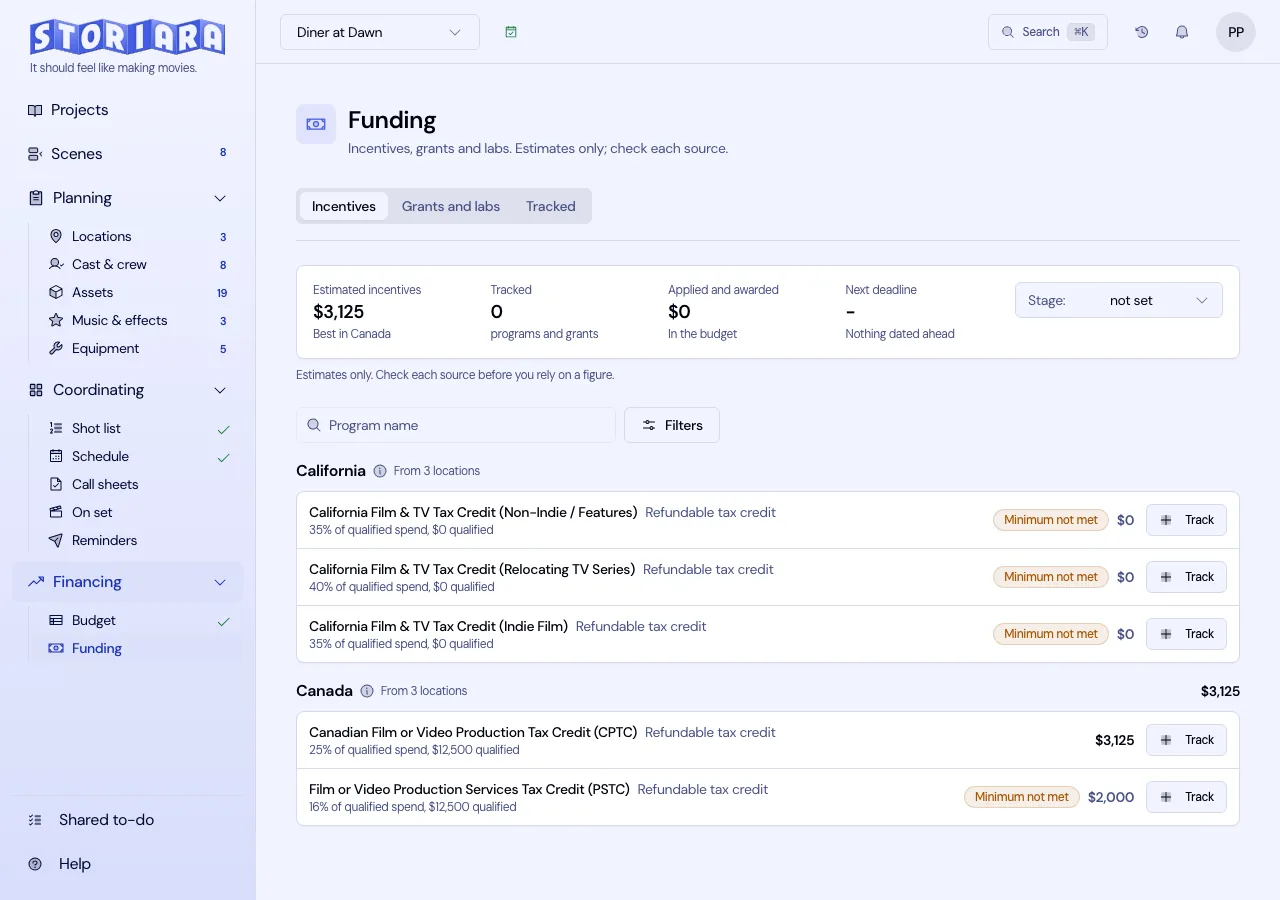
What's on the page
The page has three tabs: Incentives, Grants and labs, and Tracked, with the number you're tracking in the tab label.
Under the header, one summary strip carries the same four figures on every tab:
| Figure | What it says |
|---|---|
| Estimated incentives | The best single jurisdiction, and which one |
| Tracked | How many programs and grants you're following |
| Applied and awarded | What currently counts in the budget |
| Next deadline | The nearest dated deadline on anything you track |
Stage sits at the right end of the strip and records where the project is, which is what grant eligibility usually turns on. Under the strip is the line that matters most on this page: estimates only, check each source before you rely on a figure.
You need budget view access to see any of this, and budget edit access to track something or change its status.
Before you open Funding
- Add real addresses to your locations on the Locations page. Matching reads the address for a state, province, or country, and a location with no address is ignored.
- Link scenes to those locations and put the scenes on the stripboard. Only scheduled days count.
- Set up a budget on the Budget page, or upload the one you have. The estimate is built from your budget lines, so without one there is nothing to estimate against.
- For a closer figure, tag the budget for the programs you care about with Auto tag on the Budget page. See the tagging section below.
Incentives
Programs are grouped by jurisdiction, with the group's best estimate on the heading and the top three programs showing. Show more opens the rest.
Each row is two lines. The first carries the program name, its type in muted text, the estimated credit as the one emphasised figure, and a status badge only when there is something to say: minimum not met, not taking applications, ended. The second line is the assumption behind the figure, along the lines of "35% of qualified spend, $12,500 qualified". Track starts following it, and clicking the row opens the detail, where the breakdown, the source link, and the date the record was last checked live.
The toolbar has a search box and a Filters button with a count on it. The popover holds:
- Type: all types, tax credits, or rebates and grants.
- Compare a state or country, to add a jurisdiction you aren't shooting in and see what it would be worth.
- Hide minimums not met, off by default.
- Show places without a program, so a state with nothing available still says so rather than vanishing.
- Your project's locations, listed as read-only context, so you can see what the match is reading.
Active filters show as chips you can clear one at a time.
How the estimate is built
The estimate reads your actual budget rather than assuming a flat share of it. Each line is sorted into above-the-line labor, below-the-line labor, production goods and services, post, visual effects, overhead, or excluded. Story rights, contingency, the completion bond, and publicity are excluded, because most programs don't count them. A line counts as labor when it carries fringes, sits on a union line, or is named for a role; rental and purchase wording wins otherwise.
From there, the calculation splits labor by the resident share you set, applies per-person wage caps where the program has them, limits spend to the program's budget share or per-project spend cap, picks the highest base rate your spend qualifies for, adds the uplifts you've ticked, caps the credit, and checks the minimum spend. Optional rules such as zone bonuses, facility bonuses, logo placement, and series length only count when you say they apply, because only you know whether they will.
Amounts in other currencies are converted with ECB reference rates carried in the app, so a figure in euros is shown in your budget's currency at a rate from a fixed date, not today's.
The detail sheet shows the two assumptions you can change, the budget you'll spend in that place and the labor you'll pay to residents there, and recalculates as you change them. That is the number to argue about with your line producer, and it is where an estimate turns from a guess into a plan.
Minimums are checked against the real budget. If a program needs a minimum spend or a minimum total budget and yours falls short, the row carries a Minimum not met badge and the detail gives both figures, the amount required and the amount you have.
Estimates from incentive tags
The share assumptions above are a rough tool. Once a budget is tagged for a program, Storiara stops assuming and reads the tags instead: for every line, what it pays for, whether it is spent where you shoot, and whether a hire is local. The detail sheet says so in place of the two percentage fields, and a line above the list gives the tagged qualified spend and the number of lines behind it.
Tagging happens on the Budget page, under Auto tag. You pick the programs, the whole budget is tagged in seconds, and you check only the lines it was unsure about. Lines still waiting for your answer are left out of the estimate until you decide. When a budget sync adds lines, they are tagged for the same programs, so the estimate here follows the budget without a second pass. See how to tag a budget for incentives.
Worked example on a $1,000,000 budget shooting in Georgia: the classifier finds $720,000 of qualified spend once story rights, contingency, and the bond come out, the 20% base rate gives $144,000, and ticking the promotional logo uplift adds another 10 percentage points for $216,000. Whether you actually get the uplift is a conversation with the Georgia Film Office, which is why it's a tick box and not an assumption.
Grants and labs
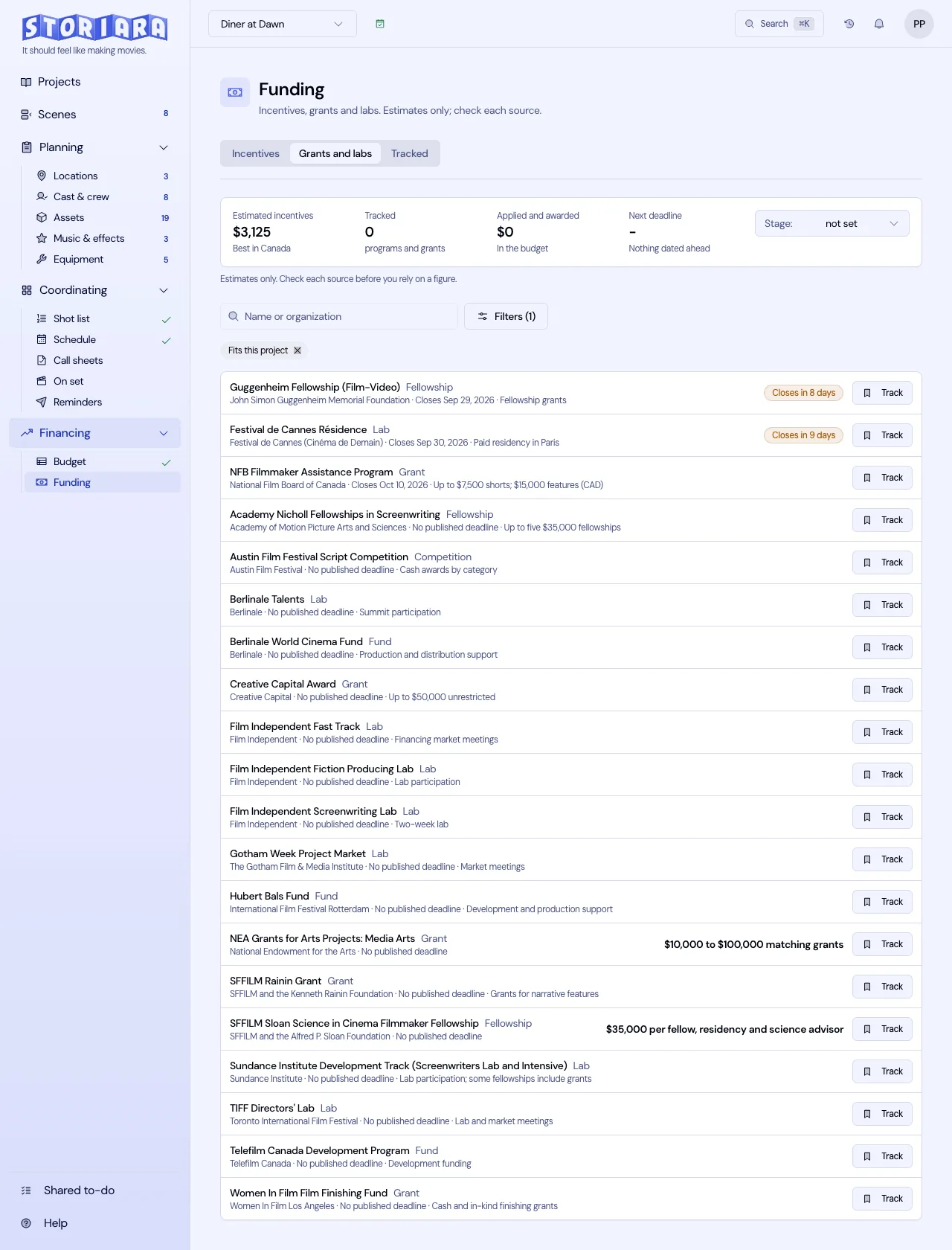
The same row shape carries researched grants, labs, fellowships, funds, and competitions: the name, the funder and kind in muted text, the amount and deadline on the right, and a status badge only for something closing soon or already closed. Filters cover kind, country, matches only, and whether to include closed ones. The detail opens in a sheet, and Track moves it to the Tracked tab.
Tracked
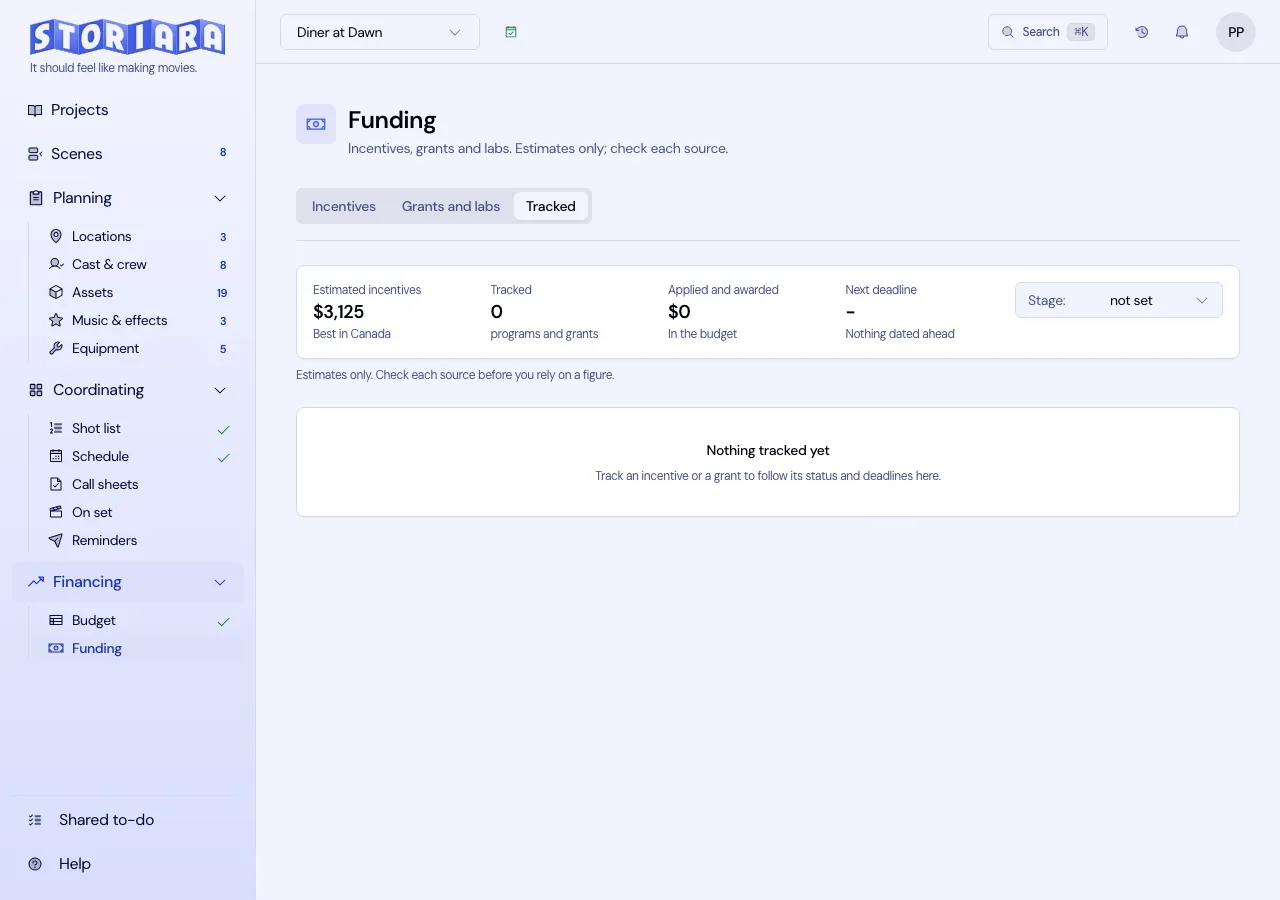
Everything you track, incentive or grant, becomes a row with a status you set: watching, applying, applied, awarded, and so on. The amount and the next date sit beside it, and the sheet holds notes, contacts, required documents, and as many dated deadlines as the program has.
Status is what connects this page to the money. Items marked applied or awarded count in the budget: their total is written to the budget as tax incentives and shows as a Financing block on the top sheet with a net total under the grand total. Items you're only watching don't count, which is the right default, because a credit you haven't applied for is not financing.
Estimates on tracked items recompute when the budget changes, so the figure doesn't quietly go stale after a rebudget.
Dated deadlines on anything you're watching or applying for send a notification 14 days and 3 days ahead, to everyone with budget view access.
How current the data is
Each record says how it was checked. Most were verified against the sources cited on the date shown. Around 40 of them, mostly local and international programs outside the main markets, are unverified imports and are labelled that way, with a small warning on the row.
Programs update automatically from their official sources. Once a week Storiara re-reads the pages each program cites. When a page changes, a rate, a per-project cap, a minimum spend, a sunset date, or a program's suspension or end can be updated, and only when the new figure appears word for word on the official page. A change that the page does not back up leaves the record exactly as it was. Nothing new is invented and an ended program is never switched back on this way. The date after "Checked against sources" on the record moves when an update is made.
Read the source before you commit to a jurisdiction either way. Rates, caps, and application windows change between legislative sessions, and a record that was right in March can be wrong in July.
Using this the way a producer would
Shortlist here, then do the real work with the film office. Open each shortlisted program's source from the detail sheet and read the current guidelines for what qualifies. Many programs exclude above-the-line fees for nonresidents or count only in-state vendors, so your real qualifying spend can sit well under what the classifier assumed on a cast-heavy budget.
Check the timeline as hard as the rate. Many incentives need an application or pre-certification before principal photography, and credits or rebates usually pay after a post audit. That's cash you have to finance through the shoot, which is why the grand total, not the net total, is the number you raise.
Compare locations early. Add a jurisdiction under Compare a state or country and read the estimate against the one you're planning on, before you commit to a scout.
Limits
- The list is refreshed from official sources once a week, not continuously, and only figures the source states outright are updated.
- Estimates from tags are only as good as the tags. Check the lines marked for review before you quote the figure.
- Per-program application windows, such as allocation periods, aren't in the data. Add them as your own deadlines on the Tracked tab.
- Annual fund exhaustion and allocation rankings aren't modeled. The breakdown says so.
- Around 40 records are unverified imports and are labelled as such.
- Currency conversion uses fixed reference rates carried in the app, not a live rate.
- No export from this page.
Related
- How to find incentives with Funding
- How to tag a budget for incentives
- How to set up a budget
- How to add locations
- Budget and Locations
- Glossary: tax credit, cash rebate, transferable tax credit, qualified spend, minimum spend
- Tool: incentive calculator
- Guides: how film tax credits work, film rebates vs tax credits, Georgia incentives